
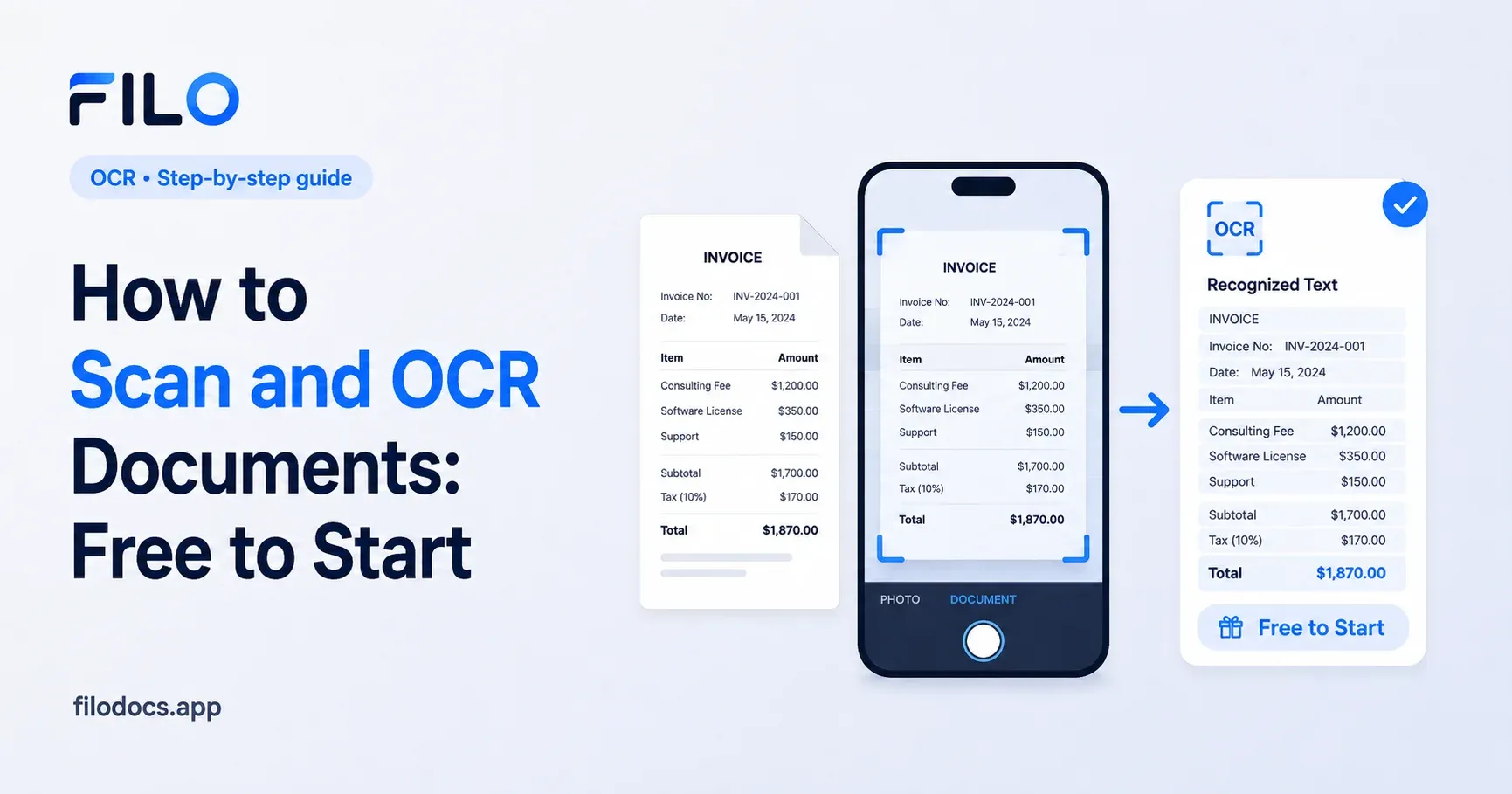
You have a stack of printed contracts, receipts, or lecture notes. Taking a photo of them is easy, but a photo is just a flat image. If you need to search for a specific invoice number next month, or copy a paragraph of text into an email right now, a standard photo will not help you. You need OCR.
OCR (Optical Character Recognition) is technology that analyzes an image of a document, identifies the letters and numbers, and converts them into editable, searchable text.
When you use OCR document scanning software, you turn physical paper into data your phone or computer can actually read, highlight, and search.
Here is exactly how to scan documents and extract text using the tools you already have, and how to handle bulk or private files when native tools fall short.
Method 1: Scan and OCR Documents on iPhone (Built-in)
If you use an iPhone, you can scan documents directly using the native Notes app. Apple also includes a feature called Live Text that acts as a basic OCR tool.
- Open the Notes app and create a new note.
- Tap the Camera icon above the keyboard and select Scan Documents.
- Hold your phone over the paper. The camera will automatically detect the edges and capture the page. Tap Save when done.
- To extract text, open the scanned document in your note. Press and hold on any visible text.
- Drag the selector to highlight the words, then tap Copy.
The trade-off: Apple Notes is great for quickly saving a PDF. However, it does not export a clean, formatted text file. You have to manually copy and paste the text into a new document. If you have a 10-page contract, this gets tedious quickly.
Method 2: Scan and OCR Documents on Android (Built-in)
Android users can rely on the Google Drive app, which has a powerful built-in scanner and automatic OCR capabilities in the cloud.
- Open the Google Drive app on your phone.
- Tap the + (New) button in the bottom right corner, then tap Scan.
- Point your camera at the document. Drive will capture the image and crop it.
- Tap the + icon to add more pages, or tap Done to save the scan as a PDF to your Drive.
The trade-off: Google Drive automatically runs OCR on files you upload, making them searchable in your Drive. However, this process requires an internet connection, and your documents are uploaded to Google's servers. If you are scanning highly sensitive documents like medical records, tax IDs, or confidential business contracts, uploading them to a cloud server might violate your privacy policies.
Method 3: Web-Based OCR Tools (Desktop)
If your documents are already on your computer, you can use web-based OCR document scanning software like Adobe Acrobat Online, Smallpdf, or iLovePDF.
- Go to your chosen web tool (e.g., Smallpdf's OCR tool).
- Drag and drop your scanned PDF or image into the browser window.
- Select the language of your document.
- Click Convert and wait for the file to process.
- Download your searchable PDF or Word document.
The trade-off: Web tools are highly accurate, but almost all of them restrict OCR to their premium paid tiers. Even if you find a free version, you are still uploading your files to a third-party server, and you will usually hit a strict file size or daily page limit.
Need to extract text without hitting a paywall or uploading your files to the web? Filo processes OCR entirely on your device for free. Download Now!
How to Scan and OCR Documents in Filo
When you need to scan a document, extract the text immediately, and ensure your private data never leaves your phone, Filo is the fastest route. It combines a multi-page document scanner and an OCR engine into one offline app.
Here is how to do it:
- Open Filo and tap the Scan & QR tool to capture your document, or select OCR (Text Extraction) if you already have a photo.
- Point your camera at the paper. Filo will automatically detect the edges, crop the background, and clean up the contrast.
- Run OCR. Tap the text extraction option. Filo reads the characters directly on your phone.
- Export or Save. You can save the result as a searchable PDF, or copy the pure text to your clipboard to paste into an email or document.
The whole process takes under 30 seconds. Free on iOS and Android, no sign-up required.
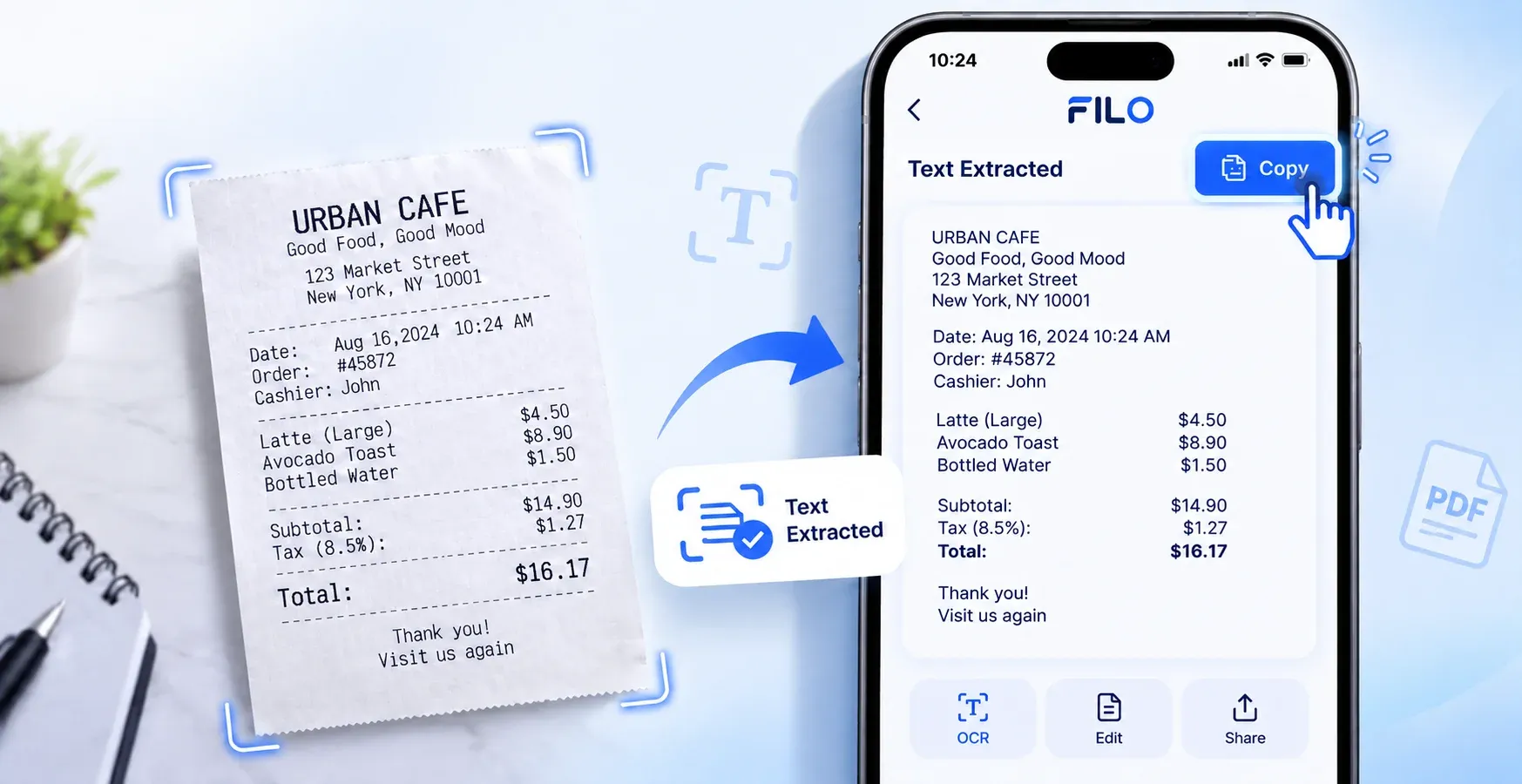
Contracts, IDs, and financial paperwork stay on your device. Filo never uploads anything. Download Now.
Why On-Device OCR Matters
Most OCR document scanning software relies on cloud processing. When you hit "convert," the app sends your file to a remote server, analyzes it, and sends the text back.
Filo processes everything 100% offline.
| Feature | Cloud OCR Tools | Filo App |
|---|---|---|
| Privacy | Files uploaded to external servers | 100% on-device; no uploads |
| Account Required | Usually (for OCR features) | No |
| Works Offline | No | Yes |
| Page Limits | Yes (often restricted on free tiers) | No |
If you are dealing with receipts for your small business, client contracts, or sensitive ID cards, keeping that data off remote servers is a massive security advantage. Furthermore, because Filo does not rely on an internet connection to process files, it is significantly faster for large batches of documents when you have weak cell service.
With over 100,000 downloads and a 4.8-star rating, Filo gives you an entire suite of document tools—including format converters, PDF mergers, and OCR—without the premium price tag. Free on Android and iOS. No account to create, no files to upload.
Download Filo on the App Store or Get Filo on Google Play
Quick Answers (FAQ)
What does OCR stand for in scanning?
OCR stands for Optical Character Recognition. It is the technology that identifies letters and numbers inside a flat image or scanned document and converts them into editable text you can search, copy, and modify.
Can I search the text inside a scanned PDF?
Only if the PDF has an OCR layer. A standard scanned PDF is just an image of a page. You must run the file through OCR document scanning software to make the text searchable.
Does extracting text from an image reduce the quality?
Extracting text does not alter the original image. However, the accuracy of the extracted text depends heavily on the quality of your original scan. Good lighting, high contrast, and straight angles yield the best OCR results.
Is Filo really free and offline?
Yes, Filo’s image conversion is free. Other features, including PDF conversion and OCR text extraction, require an internet connection and may require a premium plan. Filo does not work entirely offline.
Can I convert a PDF to a Word document using OCR?
Yes. If you have a scanned PDF, you can use Filo's PDF tools to extract the text or use its PDF-to-DOC converter to create a file compatible with Microsoft Word. Keep in mind that complex formatting (like dense tables) may not transfer perfectly.
For more practical file guides, check out our Blog Index or our comprehensive guide on converting HEIC to JPG.

.webp)
