
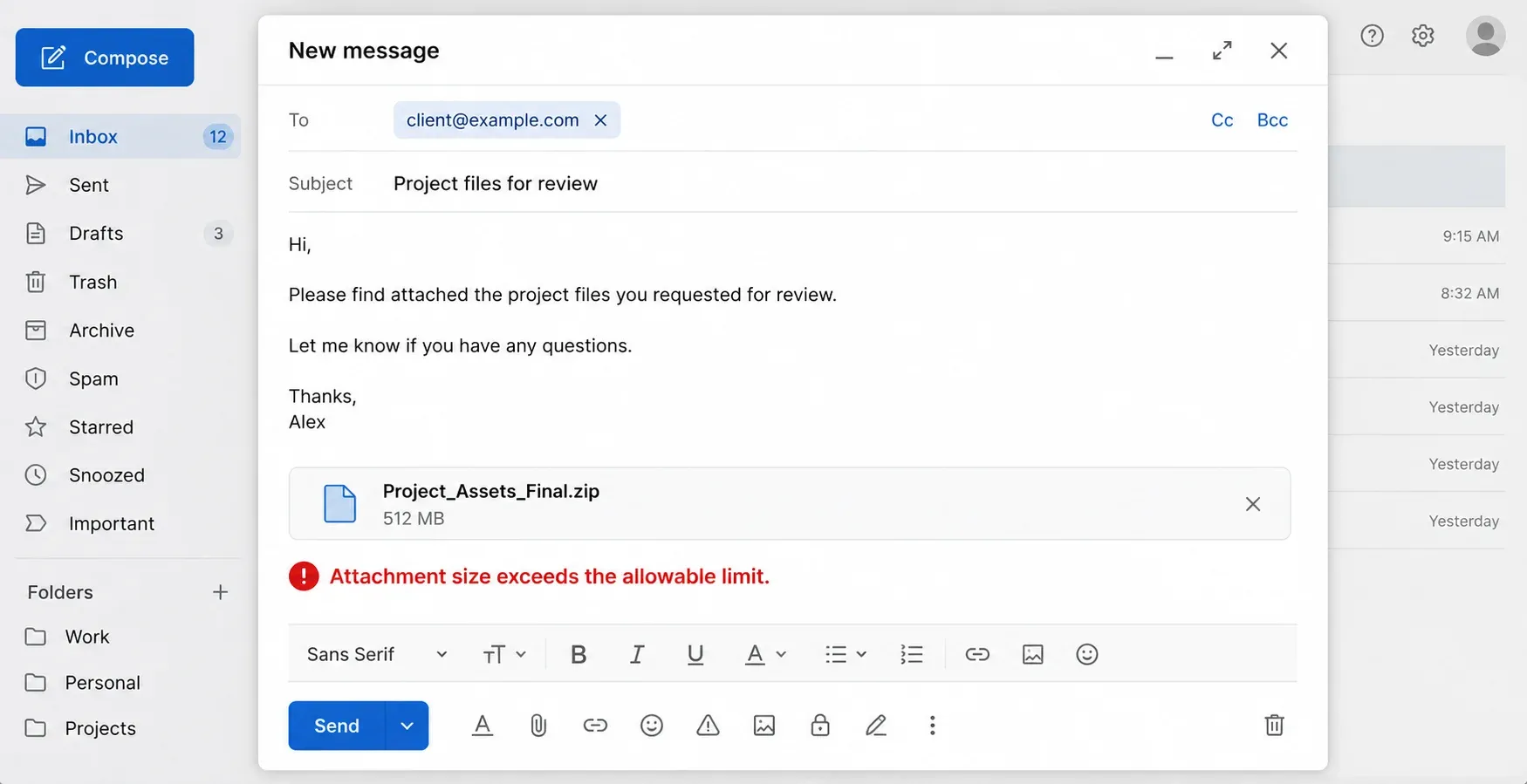
You just tried to attach a signed contract, a batch of receipts, or an invoice to a client email, and your provider blocked it. The file is too large.
Compressing a PDF reduces its file size by lowering the resolution of embedded images, stripping out unnecessary background data, and subsetting fonts. This creates a smaller document that fits within standard email limits while keeping the actual text readable.
Here are the practical ways to shrink a PDF, using built-in computer tools, web converters, and secure mobile apps.
Key Takeaways
- Email limits are strict: Gmail caps attachments at 25MB, while Outlook commonly defaults to 20MB.
- PDF compression is usually lossy. Native document text remains crisp, but embedded photos and scanned text (which are just images) will lose quality.
- Zipping a PDF bundles files together but rarely shrinks pre-compressed PDFs enough to matter.
- Mac users have a free, built-in compressor via the Preview app.
- Windows users must rely on web converters, which requires uploading files to third-party servers.
- For financial or confidential documents, use on-device mobile tools like FiloDocs. File processing is 100% offline, meaning no privacy risks.
Why Are Your PDFs So Big?
PDFs get massive when they contain high-resolution graphics, unoptimized fonts, or physical document scans. A standard text PDF takes up kilobytes of space. A PDF created by scanning paperwork with a high-megapixel phone camera creates a massive file.
If you regularly build PDFs from photos, you can prevent bloated files by learning how to compress images to reduce file size before combining them. Shrinking your JPG or HEIC files first ensures the final PDF stays manageable.
Method 1: The Built-In Mac Way (Preview)
If you are on a Mac, you do not need third-party software. macOS has a PDF compressor built directly into the Preview application.
- Open your large PDF in Preview.
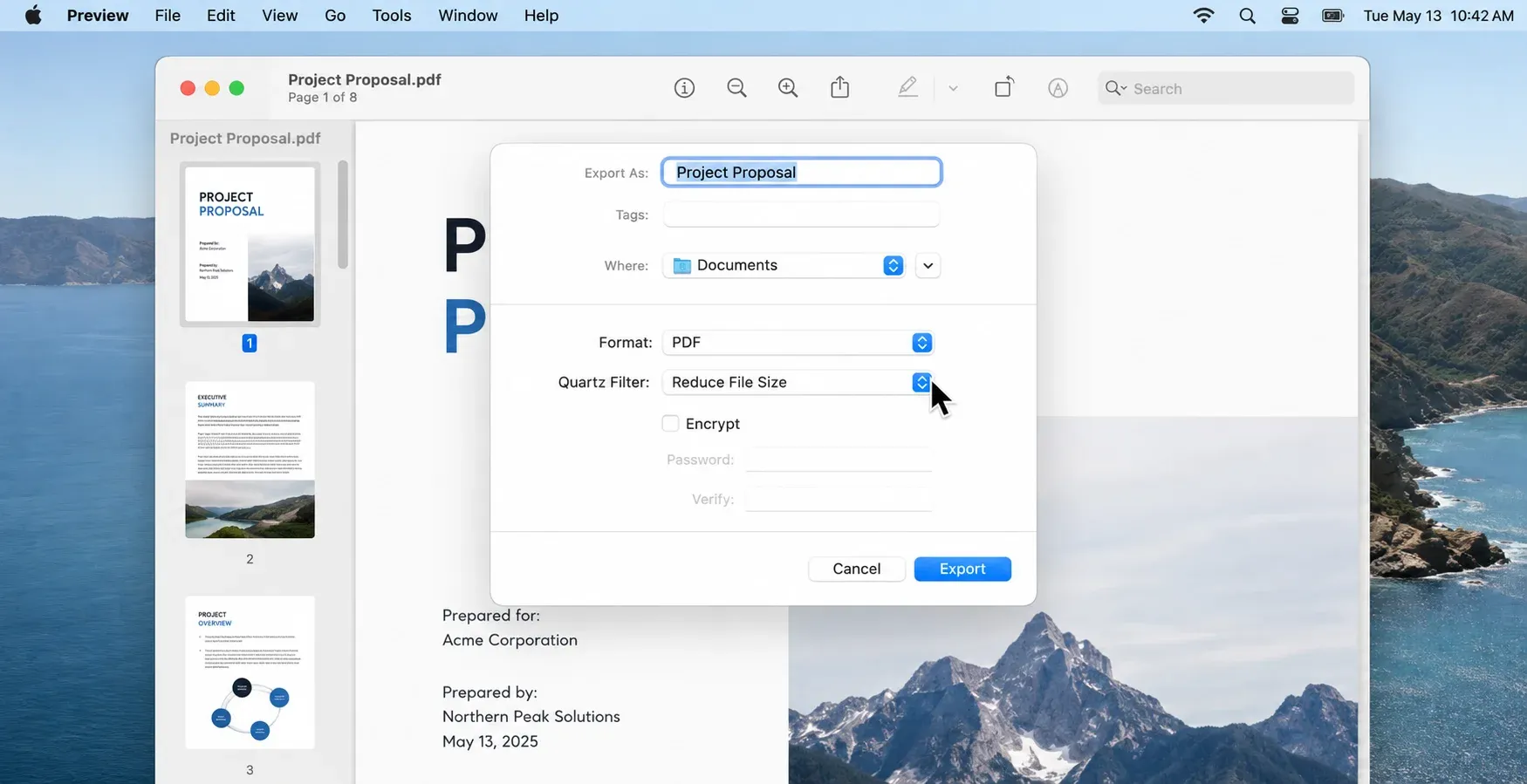
- Click File in the top menu bar, then select Export (do not choose Export as PDF).
- Click the Quartz Filter dropdown menu.
- Select Reduce File Size.
- Click Save.
The trade-off: Apple’s default Quartz Filter is aggressive. It applies heavy compression that can severely blur images and scanned paperwork. It works well for native text documents, but you have no control over the exact output quality.
Method 2: Windows ZIP (And Why It Fails for PDFs)
Windows does not have a native PDF compressor. If you are on a PC, your first instinct might be to right-click the file and select Compress to ZIP file.
Does compressing a file reduce its size this way? Yes, but only slightly for PDFs. ZIP is a lossless compression format. Because PDFs already utilize partial compression, zipping them yields minimal size reduction. It is a useful method for grouping 20 small PDFs into a single folder, but it will not fix a single oversized invoice.
Method 3: Desktop Web Converters (The PC Solution)
Because Windows lacks a native tool, PC users usually turn to web converters like Adobe Acrobat Online, Smallpdf, or Canva.
These tools are effective. You drag your file into the browser, select a compression level, wait for the upload, and download the smaller file.
The trade-off: Privacy. When you use web-based tools, you are uploading your business invoices, signed legal contracts, and personal IDs to external servers. Even with auto-delete policies, your sensitive data leaves your device.
| Feature | Web Converters | FiloDocs App |
|---|---|---|
| Files Uploaded | Yes (to external servers) | Never (100% on-device) |
| Works Offline | No | Yes |
| Account Required | Often | No |
If you are dealing with confidential paperwork, web converters are a security risk. You need a local tool. FiloDocs offers a secure alternative directly on your phone.
How to Compress a PDF in FiloDocs
If you need to shrink a PDF directly on your phone, or if you refuse to upload private business documents to random web servers, use FiloDocs.
FiloDocs processes the file entirely on your device's hardware. File processing is 100% offline, meaning you can safely compress tax forms or client contracts without an internet connection.
- Open FiloDocs and tap the Compress PDF tool.
- Select the large PDF from your local files.
- Tap Compress.
- Save the new, smaller file to your device or share it directly to your email app.
Contracts, IDs, and medical paperwork stay on your phone. Because it relies on your local hardware rather than a cloud server, the app is completely free to use for this task, and there is no account required to start processing files.
Free on iOS and Android. No account, no uploads.
Quick Answers
Will compressing a PDF make it blurry?
It depends on how the PDF was made. If it is a native digital document, the text will remain sharp. If the PDF is a scan of physical paperwork, the text is actually an image, and it will lose some clarity. PDF compressors use lossy compression on images to save space.
Does compressing a file reduce its size permanently?
Yes. When you use a PDF compressor, it permanently removes redundant data and lowers image resolution to create a new, smaller file. The original file remains unchanged unless you manually save over it.
How do I compress multiple PDFs at once?
Web tools often put batch compression behind a paid subscription or account wall. For batch processing directly on your phone without per-file limits, use FiloDocs.
.webp)

